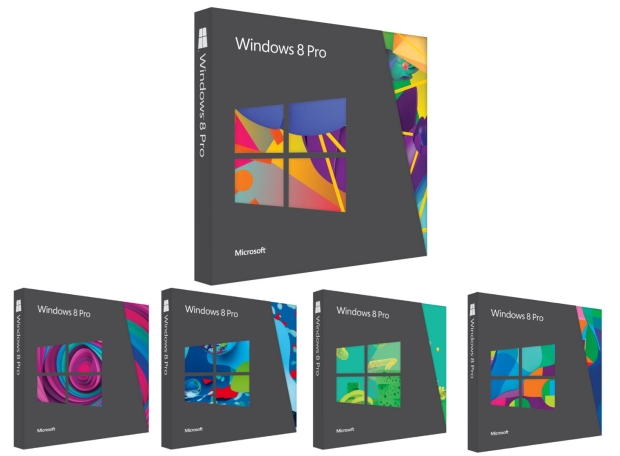
Showing posts with label Upgrade to Windows 8. Show all posts

Wednesday, 10 July 2013

Windows 8.1 Preview Released

The Windows 8.1 preview is now officially available to download, with Microsoft expected to roll out the finished version of the product later this year.

Microsoft revealed the release of Windows 8.1 Preview at its Build Developer Conference in San Francisco before, indicating it as a more refined version of windows 8.

Steve Ballmer, the CEO of Microsoft confirmed that the return of much useful Start button in new release, and it would be easy to switch back between the desktop and new user interface. 

“We put Windows 8 systems in the market at the end of last year, and yet what you see and what we will show you...is a heck of a lot of movement, innovation and responsiveness all coming to market in a very [short] time frame [with Windows 8.1],” he said.


You can easily upgrade to Windows 8.1 after downloading the windows 8.1 preview ISO file. Check the Windows 8 system requirements and hardware compatibility before installing.

Download Windows 8.1 Now
Search Terms
  • Windows 8.1 Preview
  • Windows 8.1 preview Release
  • Microsoft's New windows 8 update
  • Windows 8.1 Preview Video
  • Windows 8.1 Preview Product key
  • Windows 8.1 Preview download
  • Windows 8.1 Preview features and Price
  • Windows 8.1 Free Version
  • Windows 8.1 ISO Download Update
  • Windows 8.1 Preview Build 

Wednesday, 12 June 2013

How To Set Up Windows 8

After successful installation of Windows 8, set up your PC how you want. Personalize your system by choosing System name, color scheme, background image, account picture etc. Select the setting how you like, remember you can always change color, background and account picture later.

Next choose between Express or Custom setting. If you choose Express setting following items are configured automatically.
  • Install important and recommended updates.
  • Check online for solutions automatically to problems.
  • Enabling all MS functions
  • Enabling sharing and other device connectivity.
  • Etc...
When selected custom setting, you can customize these according to your choice. 
Next is signing in to PC. Either username/password or Microsoft's account needed to sign in to your PC. Creating Microsoft's account adds more features like cloud/sync and Windows store. Click Sign in without a Microsoft account to sign in with username and password. Done! Finally Windows will take you to a new Start screen.

Tuesday, 11 June 2013

How To Install Windows 8 Upgrade on PC

Before you installing Windows 8 Upgrade on your PC you need to purchase the Windows 8 Upgrade from Buy Windows page or Get a DVD from flipcart. Windows 8 Systems should have minimum requirements in-order to run on your PC. First check it and make sure your system able to run Windows 8.

After successfully downloaded the Windows 8 or Windows 8 Pro to your PC, you are given a few options for how and when you want to install.Lets consider each of them.


  • Install now or instal later
    Install now is recommended for smoothest upgrade. Only difference between this two is that when we selected Install later a desktop shortcut will be created and you can install Windows 8 or Windows 8 Pro when it is convenient for you.
  • Install by creating media

    Recommended for people who need to install in a virtual environment, install as dual-boot configuration, or want to install Windows in a different PC. This requires blank DVD or Usb flash drive. Windows XP SP3 users are not available to use this installation method.
After complete all the steps from windows set up installation. Then click Install. Windows will restart several times during installing. You may not need to backup files, apps and settings if you using Windows 7 else you need to reinstall after upgrade. Having trouble in Upgrading to Windows 8? Try our full overview for How to Upgrade to Windows 8 tutorial.

Sunday, 9 June 2013

Tutorial: How To Upgrade To Windows 8

Windows 8 is the latest operating system from Microsoft and you can easily upgrade your Windows 7 PC to Windows 8 Pro. Here we are conducting a full step by step walk through that helps you to upgrade your computer to the Microsoft's latest operating system.

Here is how to Upgrade
  1. Firstly you have to find out your is upgradable to Windows 8. Check Windows 8 Minimum System Requirements and find whether your computer is meet the requirements pointed there. You can use the Windows Upgrade Assistant Tool will help to check the hardware compatibility.
  2. If your system is compatible, buy and download the windows 8 by entering payment info and following on-screen steps.
  3. After downloading the Windows 8 or Windows 8 Pro upgrade to your computer, Install the Windows 8 upgrade on your PC by following the rest of the steps.
  4. Finally Set Up the Windows 8 by following the on-screen steps which includes selecting colors, background and account picture.

After successfully completing these 4 steps windows will take you to the stylish new Windows 8 start screen.

More Info About Upgrading to Windows 8

  • If your computer is running Windows 7, Windows 8 Consumer Preview, or Windows 8 Release Preview, your files, apps and setting will automatically transfer to Windows 8. Reinstalling of apps is needed is you are using Windows XP, Windows Vista or else. 
  • It is possible to upgrade from a 32-bit version for Windows to a 64-bit of Windows 8.
  • You may need Windows 8 compatible touch screen with high level of response and precision, else some Windows 8 feature won't work


© 2013 Windows 8 Turorials . All rights resevered. Designed by Templateism

Back To Top